


Deploying infrastructure ARM Templates to Azure, but using Tags and thier respective value as the parameter configuration settings
In the post, I am going to introduce a concept which will allow you to greatly up your Infrastructure as Code game, by using Azure as a State Machine!
One of the typical challenges when deploying ARM templates, is the sheer number of parameters which we find as a requirement to complete a deployment; which as you will appreciate gets considerably harder as we target many environments.

Deploying infrastructure ARM Templates to Azure, but using Tags and thier respective value as the parameter configuration settings
In the post, I am going to introduce a concept which will allow you to greatly up your Infrastructure as Code game, by using Azure as a State Machine!
One of the typical challenges when deploying ARM templates, is the sheer number of parameters which we find as a requirement to complete a deployment; which as you will appreciate gets considerably harder as we target many environments.
There are a number of methods to address this, including the use of Parameter files or Continuous deployment variables; each with their own challenges.
Resource Tags
Tags can be applied at both the level of the subscription and resources.
For the purpose of this post we will use a scenario of the recovery vault. At the subscription level, we will apply 2 tags to identity the vault we will target for the resources, and then on the actual resource we will add a tag to identity the recovery policy we wish to be applied.
| resource | tag | value |
|---|---|---|
| subscription | recoveryVault | p-vault-001 |
| subscription | recoveryVaultRG | p-vault |
| resource | recoveryPolicy | DefaultPolicy |
Subscription Level Tags
With these Tags applied, we will have something similar to the following at the subscription level:
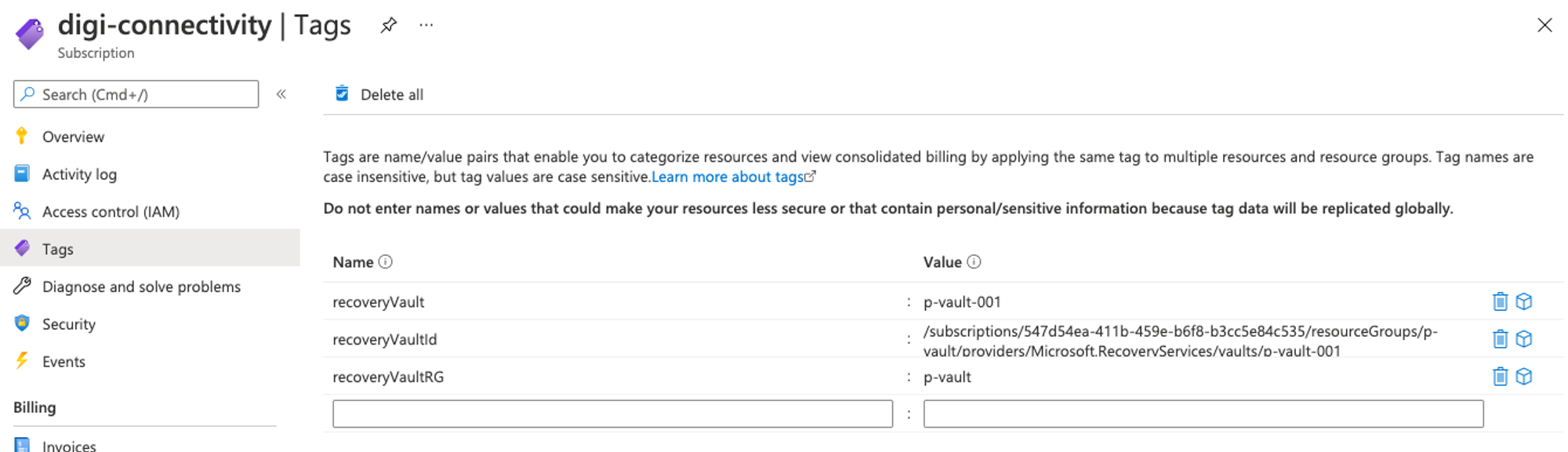
In my lab the subscription is /subscriptions/547d54ea-411b-459e-b6f8-b3cc5e84c535
Resource Tags
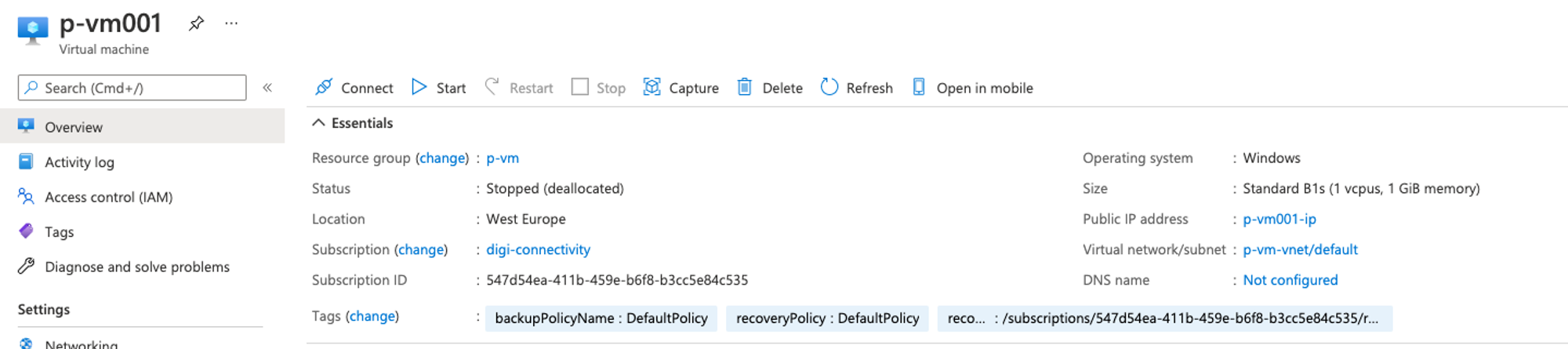
And the VM called p-vm001, which will represent the resource which we are going to monitor the tag on in my lab will be in the same subscription (for permissions to be simplified), hosted in a resource group called p-vm
The full resource ID of this VM in the lab is /subscriptions/547d54ea-411b-459e-b6f8-b3cc5e84c535/resourceGroups/p-vm/providers/Microsoft.Compute/virtualMachines/p-vm001
ARM Magic
Now, we have all the parts of this environment in place, we will create an ARM template, which simply looks up the values of these tags for us, and to illustrate how it works, it will return the values as outputs.
Using the Custom Template Deployment in Azure Portal, paste the sample template below
{
  "$schema": "https://schema.management.azure.com/schemas/2019-04-01/deploymentTemplate.json#",
  "contentVersion": "1.0.0.0",
  "parameters": {
    "sourceResourceId": {
      "type": "String",
      "defaultValue": "/subscriptions/547d54ea-411b-459e-b6f8-b3cc5e84c535/resourceGroups/p-vm/providers/Microsoft.Compute/virtualMachines/p-vm001",
      "metadata": {
        "description": "The resource ID of the resource we wish to look up a tag from."
      }
    }
  },
  "variables": {
    "referenceSubscriptionTagsResourceId": "[concat('/subscriptions/', subscription().subscriptionId, '/providers/Microsoft.Resources/tags/default')]",
    "referenceResourceTagsResourceId": "[concat(parameters('sourceResourceId'),'/providers/Microsoft.Resources/tags/default')]",
     "referenceTagsApi": "2020-06-01"
  },
  "resources": [
  ],

  "outputs": {
    "recoveryVaultId": {
      "type": "String",
      "value": "[resourceId(subscription().subscriptionId,  reference(variables('referenceSubscriptionTagsResourceId'), variables('referenceTagsApi')).tags.recoveryVaultRG ,'Microsoft.RecoveryServices/vaults',  reference(variables('referenceSubscriptionTagsResourceId'), variables('referenceTagsApi')).tags.recoveryVault) ]"
    },
    "recoveryPolicyId": {
      "type": "string",
      "value": "[concat( resourceId(subscription().subscriptionId,  reference(variables('referenceSubscriptionTagsResourceId'), variables('referenceTagsApi')).tags.recoveryVaultRG ,'Microsoft.RecoveryServices/vaults',  reference(variables('referenceSubscriptionTagsResourceId'), variables('referenceTagsApi')).tags.recoveryVault), '/backupPolicies/', reference(variables('referenceResourceTagsResourceId'), variables('referenceTagsApi')).tags.recoveryPolicy )]"
    },
    "subscriptionRecoveryVaultRGTag": {
      "type": "string",
      "value": "[reference(variables('referenceSubscriptionTagsResourceId'), variables('referenceTagsApi')).tags.recoveryVaultRG]"
    },
    "subscriptionRecoveryVaultTag": {
      "type": "string",
      "value": "[reference(variables('referenceSubscriptionTagsResourceId'), variables('referenceTagsApi')).tags.recoveryVault]"
    },
    "resourceRecoveryPolicyTag": {
      "type": "String",
      "value": "[reference(variables('referenceResourceTagsResourceId'), variables('referenceTagsApi')).tags.recoveryPolicy]"
    }
  }
}
Next, Check your going to deploy to the lab environment subscription, and resource group where we have the test VM which we will check the tag on
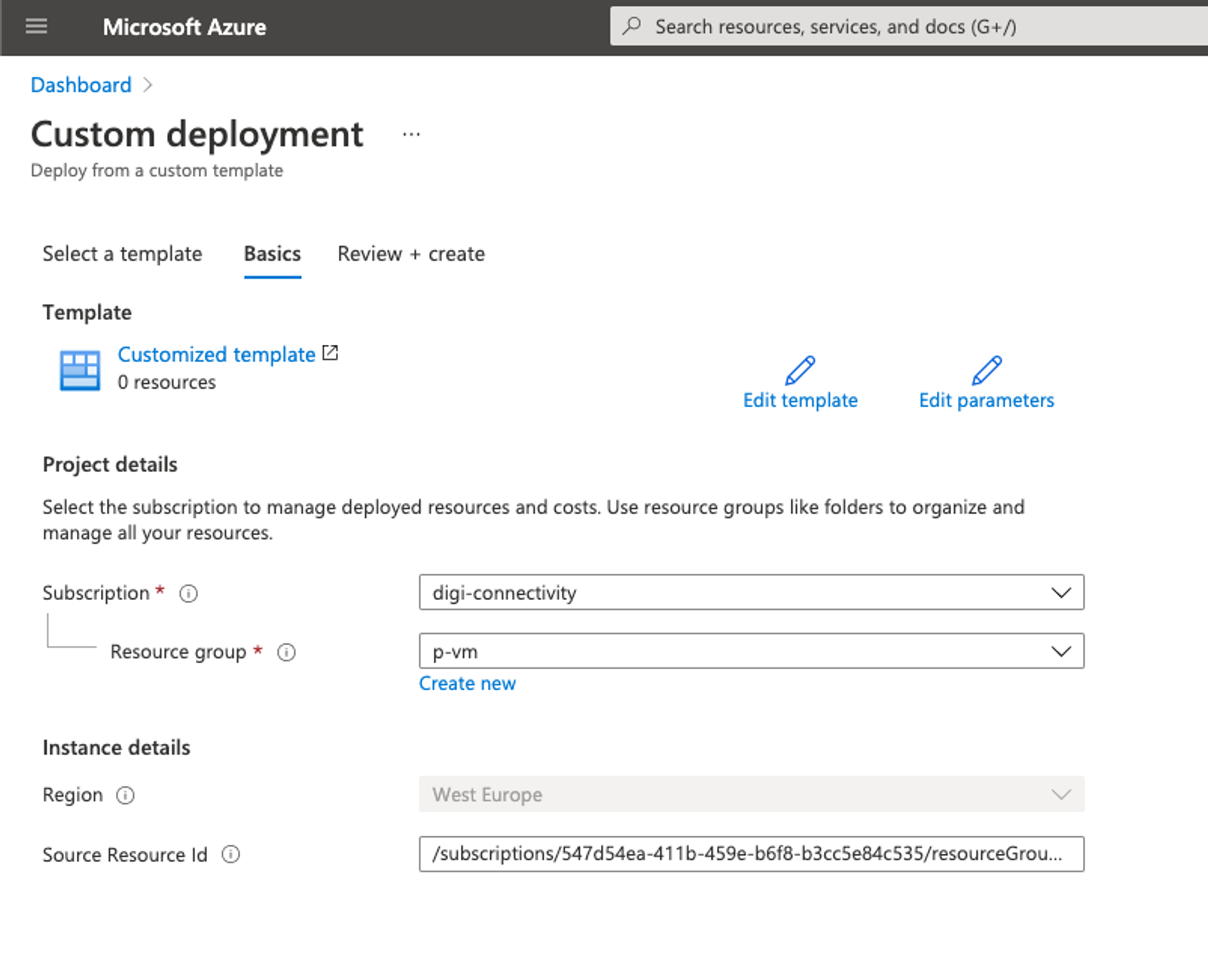
Click on the Review and Create Button, allow the validation to complete, and then click again on Create
As this is simply a reference deployment, it will complete instantly, so next we can check the output from the deployment
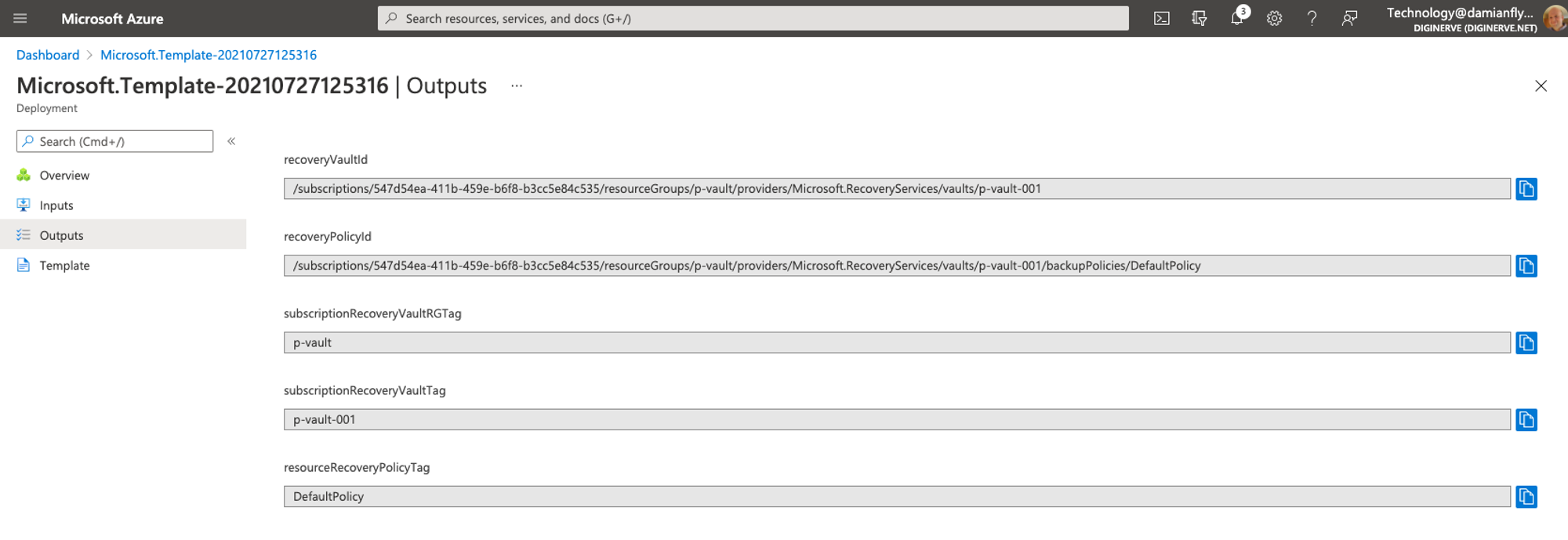
Now, we should see all the tag values which we set in the lab!
Understanding the Template
So, How?
The following ARM JSON uses the reference function to lookup the data we care about
We establish to variables which we use to point at both the tags provider for the current subscription referenceSubscriptionTagsResourceId and also, the Resource ID of the lab VM referenceResourceTagsResourceId
We also will need a provider API version, while looking up the values of these tags, so we also can use a variable referenceTagsApi to store this.
"variables": {
    "referenceSubscriptionTagsResourceId": "[concat('/subscriptions/', subscription().subscriptionId, '/providers/Microsoft.Resources/tags/default')]",
    "referenceResourceTagsResourceId": "[concat(parameters('sourceResourceId'),'/providers/Microsoft.Resources/tags/default')]",
     "referenceTagsApi": "2020-06-01"
  }
Subscription Tags
Now, the magic. In the outputs, we simply reference the resource ID of the Tag provider for the subscription, with its API version, naming the tag as the last parameter, for example recoveryVaultRG
[reference(variables('referenceSubscriptionTagsResourceId'), variables('referenceTagsApi')).tags.recoveryVaultRG]We do exactly the same for the subscription Recovery Vault tag called recoveryVault
[reference(variables('referenceSubscriptionTagsResourceId'), variables('referenceTagsApi')).tags.recoveryVault]Resource tags
In a very similar manner we can reference the tags on the resource, returning the recoveryPolicy tag value
[reference(variables('referenceResourceTagsResourceId'), variables('referenceTagsApi')).tags.recoveryPolicy]Getting Creative
Finally, with some concatenation, we can now build resource identifiers dynamically so that we an combine the values of the tags to reference recovery vaults, and recovery policies
    "recoveryVaultId": {
      "type": "String",
      "value": "[resourceId(subscription().subscriptionId,  reference(variables('referenceSubscriptionTagsResourceId'), variables('referenceTagsApi')).tags.recoveryVaultRG ,'Microsoft.RecoveryServices/vaults',  reference(variables('referenceSubscriptionTagsResourceId'), variables('referenceTagsApi')).tags.recoveryVault) ]"
    },
    "recoveryPolicyId": {
      "type": "string",
      "value": "[concat( resourceId(subscription().subscriptionId,  reference(variables('referenceSubscriptionTagsResourceId'), variables('referenceTagsApi')).tags.recoveryVaultRG ,'Microsoft.RecoveryServices/vaults',  reference(variables('referenceSubscriptionTagsResourceId'), variables('referenceTagsApi')).tags.recoveryVault), '/backupPolicies/', reference(variables('referenceResourceTagsResourceId'), variables('referenceTagsApi')).tags.recoveryPolicy )]"
    },
In this case our lab produced the following references
| Output Key | Output value |
|---|---|
| recoverVaultId | /subscriptions/547d54ea-411b-459e-b6f8-b3cc5e84c535/resourceGroups/p-vault/providers/Microsoft.RecoveryServices/vaults/p-vault-001 |
| recoveryPolicyId | /subscriptions/547d54ea-411b-459e-b6f8-b3cc5e84c535/resourceGroups/p-vault/providers/Microsoft.RecoveryServices/vaults/p-vault-001/backupPolicies/DefaultPolicy |
Now - we have the ability to leverage Azure as a stateful configuration database!
All links in a practical list


More articles
Using AI to Empower Cloud Architecture and Deployments
The integration of artificial intelligence (AI) into cloud infrastructure is revolutionizing how we manage and deploy cloud resources. AI, now a pivotal component, optimizes the entire lifecycle of cloud architecture, enhancing tasks like deployment, maintenance, and scaling. This article explores the role of AI in empowering cloud architecture and deployments, especially when combined with Infrastructure as Code (IaC) tools like Bicep and Terraform.
Bicep - Tags as Parameters
Deploying infrastructure ARM Templates to Azure, but using Tags and their respective value as the parameter configuration settings
In a post earlier, we look at using arm to lookup the value of tags’ at both the Subscription and Resource Level.
With Bicep this is much easier to understand. This is the same lab configuration as in the original post, but this time to code should be a lot more readable.

Azure IaC - Function Keys
Retrieve the Function Host Keys while deploying an ARM template
Todays conundrum: As I deploy a new Function Application, I need a simple methodology to retrieve the Host Keys for the function application so that I validate the deployment has been successful; and potentially pass on the key to related services, for example API Management.
As before, I am leveraging templates, and will stay cloud native; this time depending on the functions Output ability to present the keys.

Azure IaC - Appending Tags
Dynamically appending Tags to our ARM template with the union function
Todays conundrum: As I am leveraging templates, there will always be some standard tags I require to implement within the template, but I also require to provide additional tags as a parameter to be appended with the deployment.
My objective is to set up tags within an ARM template in accordance with good governance and the Cloud adoption framework.
Guacamole Azure Appliance
Apache Guacamole is a free and open source web application which lets you access your dashboard from anywhere using a modern web browser. It is a clientless remote desktop gateway which only requires Guacamole installed on a server and a web browser supporting HTML5.
Guacamole is the best way to keep multiple instances accessible over the internet. Once you add an instance to Guacamole, you don’t need to remember the password as it can securely store the credentials. It also lets you share the desktops among other users in a group. Guacamole supports multiple connection methods such as SSH, Telnet, VNC, and RDP.